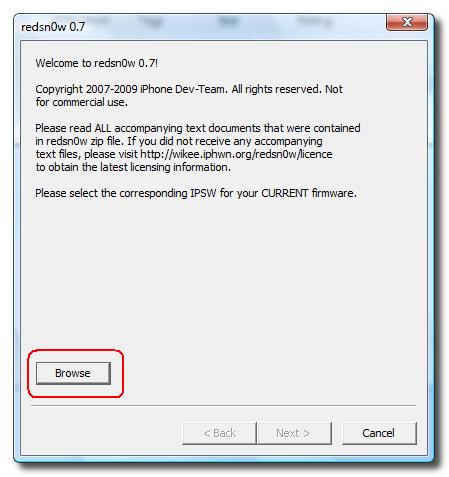
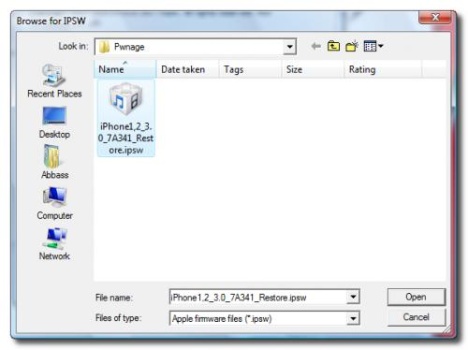
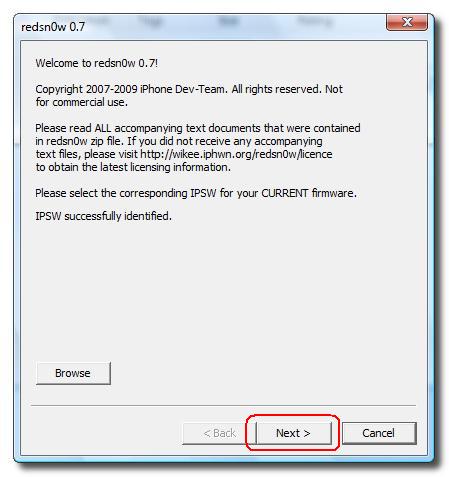
Step 11: Make sure the ‘Install Cydia’ check box is selected and click the Next button.

Step 12: Make sure that your iPhone is plugged into the computer, and it’s switched OFF. Now click on the Next button.

Step 13: redsn0w will now guide you through the steps to get into DFU mode.

Hold down both the Home button and the Power button for 10 seconds.

Now, Release the Power button and continue holding the Home button until redsn0w detects the device.

Step 14: You will see a message that states that your iPhone is being jailbroken. Your iPhone will then reboot.

Step 15: redsn0w will begin uploading the new RAM Disk.

Once this activity is completed you will be see the message ‘Done!’, which means that your iPhone 3G has been jailbroken.
Step 16: Click the Finish button.
And when your iPhone finishes rebooting (approx. 5 minutes). It will be jailbroken with Cydia available on your iPhone’s home screen so that you can install jailbreak apps.

TO UNLOCK IPHONE
Here are the steps that you can follow:
- Launch Cydia
- Please add the repo repo666.ultrasn0w.com to Cydia. That last “o” is actually the number zero “0”. If you use the letter “o” you’ll get an error.
- Then search for ‘ultrasn0w’ in Cydia and install ultrasn0w.
- T-Mobile USA users should disable 3G before using ultrasn0w.
This should successfully unlock your iPhone.
We have already got confirmations from our readers that they’ve successfully unlocked their iPhone 2G iPhone 3G and iPhone 3GS on iPhone OS 3.1.3.
